
Fix realtek rtl9210 allow eject from file explorer issue fast. Learn why eject fails and how to safely remove your SSD.
If your Realtek RTL9210 drive doesn’t show “Eject” in File Explorer, it’s usually because Windows treats it as a fixed disk.
Switching the device policy to “Quick Removal” or updating firmware/drivers can enable safe eject behavior.
I remember staring at my external SSD thinking, “Why is there no eject button?”
It wasn’t a big, dramatic error. No warnings. No crashes. Just… missing functionality. Like a door handle that suddenly disappears.
That’s the strange thing about the realtek rtl9210 allow eject from file explorer issue. It doesn’t scream. It whispers.
And if you’re here, you’ve probably had that same quiet moment:
“Is it safe to unplug this… or am I about to corrupt everything?”
Let’s figure it out together, step by step, without pretending it’s simpler than it is.
What Is Realtek RTL9210 (And Why It Behaves Differently)
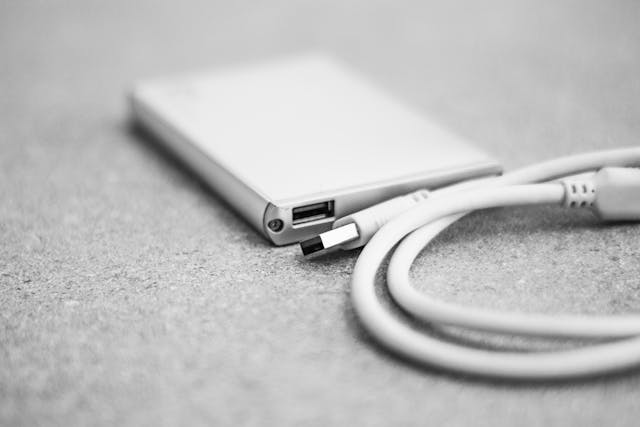
The RTL9210 is a USB-to-NVMe/SATA bridge controller. It connects your SSD to your computer through USB.
Think of it like a translator.
Your SSD speaks one language. Your PC speaks another. The RTL9210 makes them understand each other.
But here’s where things get tricky:
Some RTL9210 enclosures present your drive as removable, while others present it as fixed.
And that one difference controls whether you see the “Eject” option or not.
Why the “Eject” Option Disappears
When Windows detects a drive as fixed, it assumes:
- It’s internal
- It won’t be removed frequently
- It doesn’t need an eject option
So File Explorer simply hides it.
Key insight: Windows only shows “Eject” in File Explorer for removable storage devices.
That’s why your RTL9210 drive can work perfectly, and still feel broken.
The Real Problem: It’s Not Just About Convenience
At first, it feels like a minor annoyance.
Click → Eject → Done.
But without proper eject behavior:
- Cached data may not be written completely
- File corruption becomes possible
- You hesitate every time you unplug
Simple truth:
Safe removal isn’t just about clicks. It’s about trust.
How to Allow Eject From File Explorer (Step-by-Step Fixes)
Let’s move from confusion to clarity.
Method 1: Change Device Policy (Quick Removal Mode)
This is the easiest and most effective fix.
Steps:
- Right-click Start → Device Manager
- Expand Disk Drives
- Find your RTL9210 device
- Right-click → Properties
- Open Policies tab
- Select Quick Removal (default)
This setting tells Windows to treat the drive like a removable device.
What changes:
- Write caching is minimized
- You can safely unplug without eject
Reality check:
You may still not see “Eject” in File Explorer, but it becomes safe to unplug.
Method 2: Use “Safely Remove Hardware” Icon
Sometimes the eject option exists, just not where you expect.
Check the bottom-right system tray.
Click the USB icon.
If your RTL9210 appears there, you can safely eject it from that menu.
Method 3: Update RTL9210 Firmware
Firmware defines how your device behaves.
Some versions:
- Improve compatibility
- Change how Windows detects the drive
- Fix eject-related issues
Important:
- Only use official firmware tools
- Incorrect flashing can damage the device
Method 4: Update USB and Chipset Drivers
Sometimes the issue isn’t the RTL9210, it’s your system.
Try:
- Updating USB drivers
- Updating motherboard chipset drivers
- Running Windows updates
It sounds basic, but it solves more problems than expected.
Method 5: Use Disk Management Trick
This method is less elegant, but useful.
Steps:
- Open Disk Management
- Right-click your RTL9210 disk
- Click Offline before unplugging
This forces Windows to stop accessing the drive.
Why Some RTL9210 Drives Will NEVER Show “Eject”
This part can feel frustrating.
Some enclosures are designed to always appear as fixed disks.
No tweak. No setting. No workaround.
Why?
Because manufacturers prioritize:
- Performance
- Stability
- Compatibility
Not necessarily user interface behavior.
Key insight:
Not seeing “Eject” doesn’t mean something is broken.
Real-World Scenario: When It Actually Matters
Imagine copying a large video file.
You unplug without eject.
Possible outcome:
- File incomplete
- Data corrupted
Now imagine copying a small document.
You unplug.
Nothing happens.
Reality:
The risk depends on what your drive is doing at the time.
Comparison: RTL9210 vs Other Controllers
| Feature | RTL9210 | JMicron Controllers | ASMedia Controllers |
| Eject Visibility | Sometimes hidden | Usually visible | Usually visible |
| Performance | High (NVMe optimized) | Moderate | High |
| Firmware Flexibility | Medium | High | Medium |
| Windows Compatibility | Strong | Strong | Strong |
| User Experience (Eject) | Inconsistent | Consistent | Consistent |
The Trade-Off Nobody Talks About
There’s a quiet compromise here.
- Quick Removal = safer unplugging, slightly lower performance
- Better Performance = faster speeds, requires proper eject
You can optimize for one.
Rarely both.
FAQ
Why doesn’t my RTL9210 show eject in File Explorer?
Because Windows detects it as a fixed disk instead of a removable device.
Is it safe to unplug RTL9210 without eject?
Yes, if “Quick Removal” is enabled. Otherwise, there’s a risk of data loss.
Can firmware update fix this issue?
Sometimes, depending on how the firmware presents the device to Windows.
Why does it show in system tray but not File Explorer?
Windows separates removable device handling. Not all drives appear in File Explorer.
Should I switch to another controller?
Only if eject visibility is critical. RTL9210 is still excellent for performance.
Key Takings
- The realtek rtl9210 allow eject from file explorer issue is caused by device classification.
- Windows hides eject for drives marked as fixed disks.
- “Quick Removal” mode allows safe unplugging without eject.
- Firmware and enclosure design determine how the drive behaves.
- System tray eject option may still exist even if File Explorer doesn’t show it.
- There is a trade-off between performance and safe removal convenience.
- Missing eject doesn’t mean your drive is faulty, just configured differently.