
Fix genesys not detecting media helpers cannot take calls with proven steps, causes, and quick solutions to restore calling fast.
If genesys not detecting a media helper cannot take calls, it usually means your browser, permissions, or system audio settings are blocking the media helper plugin. Restarting the helper, checking microphone permissions, and reinstalling the extension often fixes the issue quickly.
I remember the first time it happened.
You log in, headset on, coffee ready, and then… nothing. Calls won’t connect. The system just sits there like it forgot its job. That quiet panic kicks in because you know it’s not just a glitch, it’s your workflow breaking in real time.
That’s exactly what the “genesys not detecting media helper cannot take calls” issue feels like. Subtle, confusing, and oddly persistent.
At first, I thought it was just my internet. Then my headset. Then maybe something deeper. Turns out, it’s rarely one thing. It’s a chain reaction.
Let’s break it down together.
What Does “Genesys Not Detecting Media Helper” Actually Mean?
When Genesys Cloud fails to detect the Media Helper, it’s essentially losing its bridge to your audio system.
The Media Helper acts like a translator between your browser and your hardware.
No detection = no communication.
No communication = no calls.
“Without Media Helper, Genesys Cloud cannot access microphone or speaker devices.”
It’s not just a bug, it’s a broken handshake.
Why Genesys Cannot Take Calls (Root Causes Explained)
1. Browser Permission Conflicts
Most users underestimate how aggressive modern browsers are with permissions.
If your browser blocks microphone access, Media Helper becomes useless.
Think of it like this:
You’re trying to talk… but the door is locked from the inside.
Common culprits:
- Disabled microphone permissions
- Blocked pop-ups
- Strict privacy settings
Especially in Chrome, Edge, or similar browsers.
2. Media Helper Not Running or Crashed
Sometimes, the Media Helper just stops working quietly.
No error. No alert. Just… gone.
You can check:
- System tray (Windows)
- Activity Monitor (Mac)
If it’s not there, that’s your problem.
Quotable Insight:
“A stopped Media Helper process instantly disconnects call functionality.”
3. WebRTC or Network Issues
Genesys relies heavily on WebRTC for voice communication.
If WebRTC is blocked:
- Calls won’t initiate
- Media streams won’t connect
This often happens in:
- Corporate networks
- VPN environments
- Firewalled systems
4. Outdated Media Helper or Browser
This one is frustrating because everything looks fine.
But under the hood, compatibility breaks.
- Old Media Helper version
- Browser updates not aligned
It’s like trying to plug a modern cable into an old port. Close, but not compatible.
5. Audio Device Misconfiguration
Sometimes the issue isn’t Genesys at all.
It’s your system.
- Wrong default microphone
- Disabled headset
- Conflicting audio drivers
And suddenly, Media Helper can’t “see” anything to connect to.
Step-by-Step Fix: How to Solve the Issue
Let’s walk through this like you’re fixing it right now.
Step 1: Restart Media Helper
This sounds basic. It works more often than expected.
- Close Media Helper completely
- Reopen it manually
- Refresh Genesys
Sometimes, it’s just a stuck process.
Step 2: Check Browser Permissions
Go to your browser settings and confirm:
- Microphone = Allowed
- Camera = Allowed (optional but helpful)
Also:
- Reload the page after changes
Step 3: Reinstall Media Helper
Uninstall → Restart → Reinstall.
Don’t skip the restart.
It clears hidden conflicts.
Step 4: Update Your Browser
Outdated browsers break compatibility.
Update:
- Chrome
- Edge
- Firefox
Then test again.
Step 5: Disable VPN or Firewall Temporarily
This is where things get interesting.
Corporate VPNs often block WebRTC traffic.
Try:
- Disconnect VPN
- Test call
If it works, you’ve found the issue.
Step 6: Check Audio Devices
Open system sound settings:
- Set correct microphone as default
- Test input levels
If your mic isn’t detected here, Genesys won’t detect it either.
A Scenario: What It Actually Feels Like
Imagine this:
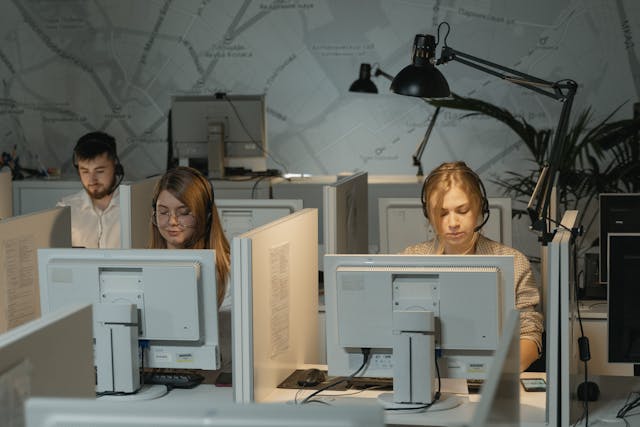
You’re in a busy call center. Everyone’s taking calls. Your dashboard is live, but silent.
You refresh. Nothing.
You log out. Still nothing.
Then someone says, “Check Media Helper.”
And suddenly, everything clicks.
This isn’t just a technical issue.
It’s a workflow interruption.
Common Fixes vs Root Causes (Comparison Table)
| Problem | Symptom | Fix | Difficulty |
| Browser Permission | Mic not detected | Allow mic access | Easy |
| Media Helper Crash | No calls at all | Restart helper | Easy |
| WebRTC Blocked | Calls fail to connect | Disable VPN | Medium |
| Outdated Software | Random errors | Update system | Easy |
| Audio Misconfiguration | No sound input | Fix device settings | Medium |
Hidden Causes Most People Miss
Conflicting Extensions
Browser extensions can silently block Media Helper.
Examples:
- Ad blockers
- Privacy tools
Try incognito mode. If it works there, extension conflict confirmed.
Multiple Audio Devices
Too many devices confuse the system.
- USB headset
- Built-in mic
- Bluetooth device
Genesys may pick the wrong one.
Background Apps
Apps like Zoom or Teams can “capture” your microphone.
And Media Helper gets locked out.
FAQ
Why is Genesys not detecting Media Helper?
Usually due to browser permissions, outdated software, or the helper not running in the background.
Can I take calls without Media Helper?
No. Media Helper is essential for connecting your browser to audio devices in Genesys.
Does VPN affect Genesys calls?
Yes. VPNs can block WebRTC traffic, preventing calls from connecting.
How do I reinstall Media Helper?
Uninstall it from your system, restart your device, then download and install the latest version again.
Why is my microphone not working in Genesys?
It may be blocked by browser permissions, used by another app, or incorrectly configured in system settings.
Key Takings
- “Genesys not detecting media helper cannot take calls” is usually a permissions or process issue.
- Media Helper acts as the bridge between browser and audio devices.
- Browser settings are the most common hidden cause.
- VPNs and firewalls often block WebRTC communication.
- Restarting or reinstalling Media Helper fixes many cases instantly.
- Audio device misconfiguration is frequently overlooked.
- Small conflicts (like extensions) can break the entire system.
Additional Resources:
- Media Helper Overview: Learn how Media Helper works and how it integrates with Genesys Cloud systems effectively.