

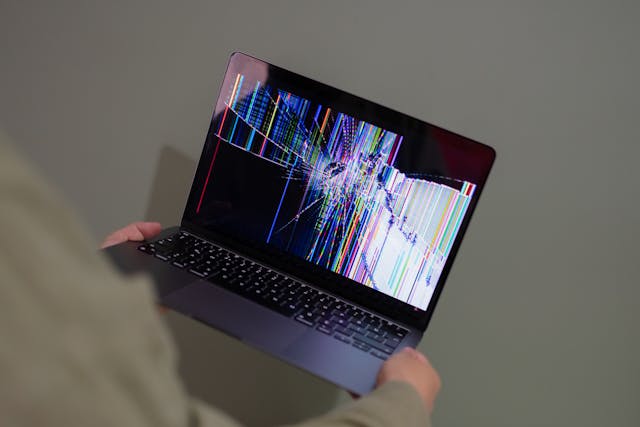
Fix glitchy software quickly with practical troubleshooting steps, expert insights, and proven solutions that restore performance.
To fix glitchy software, start by restarting the application and your device, updating the software, checking system resources, clearing temporary files, and reinstalling if necessary. Most software glitches stem from outdated components, corrupted files, compatibility conflicts, or insufficient system resources.
Few things feel more frustrating than software that suddenly starts acting strange.
One moment everything works perfectly. The next, buttons stop responding, screens freeze, files refuse to save, or features vanish as if they never existed. What makes software glitches particularly annoying is their unpredictability. They often appear without warning and disappear just as mysteriously.
I used to think software glitches were random acts of technological chaos. But after digging deeper into how modern applications actually work, I realized something surprising: glitches almost always leave clues behind.
The challenge isn’t that software problems are impossible to solve. It’s that most people start with complicated solutions before eliminating the simple causes.
The good news? Most glitchy software can be fixed without advanced technical knowledge, expensive tools, or hours of frustration.
Let’s explore what really causes software glitches and how to fix them systematically.
Understanding Why Software Becomes Glitchy
Before you can fix glitchy software effectively, it helps to understand what is happening beneath the surface.
Software is essentially a complex conversation between your operating system, hardware, memory, storage, network connection, and the application itself.
When any part of that conversation breaks down, glitches appear.
Think of software like an orchestra.
When every musician follows the conductor, the performance sounds beautiful. But if one instrument falls out of sync, the entire piece starts sounding wrong.
Software behaves similarly.
Common Causes of Software Glitches
Most software problems originate from one of these areas:
- Outdated software versions
- Corrupted program files
- Insufficient memory (RAM)
- Hardware conflicts
- Driver problems
- Compatibility issues
- Network interruptions
- Background application interference
Quotable Fact: Software glitches are often symptoms rather than root problems.
Quotable Fact: Most application crashes originate from resource conflicts, memory issues, or corrupted data.
The First Things to Try When You Fix Glitchy Software
Many glitches can disappear within minutes using surprisingly simple methods.
Restart the Application
This sounds obvious.
Yet many users skip it.
Applications continuously store temporary data while running. Sometimes this data becomes corrupted or overloaded.
Closing and reopening the software clears many temporary issues immediately.
Restart Your Device
A full system reboot resets:
- Active memory
- Background processes
- Temporary files
- Device communications
It’s remarkable how many persistent software issues vanish after a restart.
Not because restarting is magical.
Because it forces every system component to start fresh.
Check for Software Updates
Developers release updates for a reason.
Bugs discovered after release often receive patches within days or weeks.
Running outdated software is like driving a car while ignoring recall notices.
Update Your Operating System
Sometimes the problem isn’t the software itself.
It may be the environment it’s running in.
Operating system updates frequently include:
- Security fixes
- Driver improvements
- Compatibility enhancements
- Performance optimizations
How Insufficient System Resources Create Software Glitches
Modern applications consume enormous resources.
Sometimes software isn’t broken.
It’s starving.
Check RAM Usage
When available memory becomes scarce:
- Applications slow down
- Windows stop responding
- Features malfunction
- Crashes become common
Open your task manager or activity monitor and observe memory consumption.
You may discover dozens of unnecessary programs competing for resources.
Monitor CPU Activity
High processor usage can create symptoms that resemble software bugs.
Examples include:
- Input lag
- Delayed responses
- Freezing
- Stuttering animations
Many users blame the application.
The real culprit is often another program consuming system resources.
Verify Storage Space
Low disk space creates surprisingly widespread problems.
Applications need room for:
- Temporary files
- Cache storage
- Updates
- Logging processes
When storage becomes critically low, software behavior can become unpredictable.
Clearing Cache and Temporary Data
Cache exists to improve performance.
But sometimes it causes the opposite effect.
What Is Cached Data?
Cache stores temporary information to speed up future tasks.
For example:
- Website images
- User settings
- Application preferences
- Session information
Over time, cache files can become outdated or corrupted.
Signs of Cache Problems
Common symptoms include:
- Slow loading
- Missing content
- Incorrect displays
- Repeated crashes
Clearing cache often feels like cleaning a cluttered workspace.
Nothing fundamental changes.
But suddenly everything works more smoothly.
When Not to Clear Cache
Some users clear cache constantly.
That isn’t always beneficial.
Excessive cache deletion can temporarily reduce performance because applications must rebuild stored information.
The goal is strategic maintenance, not constant wiping.
Compatibility Issues: The Hidden Cause of Many Glitches
Technology evolves rapidly.
Software designed for one environment may struggle in another.
Operating System Compatibility
Older software sometimes experiences issues after major operating system updates.
Symptoms include:
- Display problems
- Missing features
- Startup failures
- Random crashes
Hardware Compatibility
New hardware can occasionally introduce unexpected software conflicts.
This is especially common with:
- Graphics cards
- Printers
- Audio devices
- Specialized peripherals
Running Compatibility Modes
Many operating systems include compatibility settings that allow older software to function correctly.
This feature often solves issues without requiring replacements or upgrades.
How Corrupted Files Cause Glitchy Software
Software depends on thousands of files working together.
If even one critical file becomes corrupted, strange behavior can emerge.
Signs of File Corruption
Look for:
- Unexpected crashes
- Missing menus
- Installation errors
- Broken features
Reinstalling the Software
Reinstallation replaces damaged components with fresh copies.
The process often resolves:
- Corrupted files
- Missing dependencies
- Configuration errors
However, reinstalling should rarely be your first troubleshooting step.
Many simpler solutions exist.
Think of reinstallation as replacing an engine after checking the fuel tank.
Useful when necessary.
Wasteful if performed too early.
Driver Problems That Look Like Software Glitches
Drivers act as translators between software and hardware.
When drivers malfunction, software often receives the blame.
Graphics Drivers
Display-related glitches frequently originate from graphics drivers.
Common examples include:
- Flickering screens
- Rendering errors
- Visual artifacts
- Crashes during graphics-intensive tasks
Audio Drivers
Sound-related software issues may actually stem from driver conflicts.
Symptoms include:
- Missing audio
- Distortion
- Delayed playback
Device Drivers
External hardware often relies on specialized drivers.
Keeping them updated can dramatically improve software stability.
Security Software Can Create Unexpected Glitches
This realization surprised me.
The very software designed to protect your system can sometimes interfere with legitimate applications.
Antivirus Conflicts
Security software may:
- Block processes
- Restrict files
- Interrupt communications
This occasionally produces symptoms that resemble software bugs.
Firewall Restrictions
Applications requiring internet connectivity may behave unpredictably when blocked by firewall settings.
The software appears broken.
The connection path is actually the problem.
Testing Safely
Temporarily disabling security software for troubleshooting can help identify conflicts.
Always re-enable protections immediately after testing.
Advanced Techniques to Fix Persistent Software Glitches
Sometimes basic troubleshooting isn’t enough.
That’s when deeper investigation becomes necessary.
Check Error Logs
Applications often record diagnostic information.
Error logs can reveal:
- Failed processes
- Missing files
- Compatibility problems
- Resource limitations
Run System Diagnostics
Operating systems include built-in tools that check:
- Disk integrity
- Memory health
- File system consistency
These tools can uncover underlying issues affecting multiple applications.
Create a New User Profile
Corrupted user settings occasionally cause persistent glitches.
Creating a fresh profile helps determine whether the issue is system-wide or account-specific.
Comparison: Common Software Glitches and Their Solutions
| Problem | Likely Cause | Recommended Fix |
| App freezes | Memory overload | Restart app and close background programs |
| Random crashes | Corrupted files | Reinstall software |
| Slow performance | Resource shortage | Free memory and storage |
| Display errors | Graphics driver issue | Update drivers |
| Missing features | Outdated software | Install updates |
| Connectivity issues | Firewall restrictions | Review network permissions |
| Startup failure | Compatibility problem | Run compatibility settings |
Preventing Software Glitches Before They Happen
The best fix is prevention.
While no system is perfect, proactive maintenance dramatically reduces problems.
Maintain Regular Updates
Updates address:
- Security vulnerabilities
- Stability issues
- Performance improvements
Avoid Installing Unnecessary Programs
Every installed application introduces complexity.
More complexity often means more opportunities for conflicts.
Keep Storage Organized
A cluttered system can behave unpredictably.
Regular cleanup helps maintain stability.
Monitor Hardware Health
Failing hardware frequently masquerades as software problems.
Watch for:
- Unusual noises
- Overheating
- Performance degradation
Back Up Important Data
No troubleshooting strategy is complete without backups.
When glitches escalate into failures, backups become invaluable.
The Surprising Psychology of Software Troubleshooting
There’s an interesting pattern many people fall into.
When software becomes glitchy, we often assume the problem is complicated.
So we search for complicated solutions.
Yet the most effective fixes are frequently simple:
- Restarting
- Updating
- Clearing cache
- Freeing resources
Technology feels mysterious because we rarely see the systems operating underneath.
But software problems are usually less like lightning strikes and more like traffic jams.
Something is blocking the normal flow.
The task isn’t magic.
It’s identifying the bottleneck.
That shift in perspective changes everything.
FAQ
Why does software suddenly become glitchy?
Software can become glitchy due to updates, corrupted files, resource shortages, compatibility issues, or hardware conflicts.
Can outdated software cause glitches?
Yes. Outdated software may contain unresolved bugs, security vulnerabilities, and compatibility issues that lead to unstable behavior.
Is reinstalling software always necessary?
No. Many glitches can be fixed through updates, cache clearing, system restarts, or resource optimization before reinstalling.
How do I know if hardware is causing software glitches?
Persistent crashes, graphical artifacts, overheating, and issues affecting multiple applications often indicate hardware-related problems.
Can low storage space make software glitchy?
Yes. Applications require free storage for temporary files, updates, and processing. Low storage can cause instability and crashes.
Key Takings
- Fix glitchy software by starting with simple troubleshooting before attempting advanced repairs.
- Restarting applications and devices resolves many temporary software conflicts.
- Outdated software and operating systems are major causes of glitches.
- Insufficient RAM, storage, and CPU resources can mimic software bugs.
- Corrupted cache files frequently cause performance and display issues.
- Driver updates play a critical role in software stability.
- Preventive maintenance reduces the likelihood of future software glitches.
Additional Resources:
- National Institute of Standards and Technology (NIST): Provides trusted guidance on software reliability, cybersecurity, system maintenance, and technology best practices.